

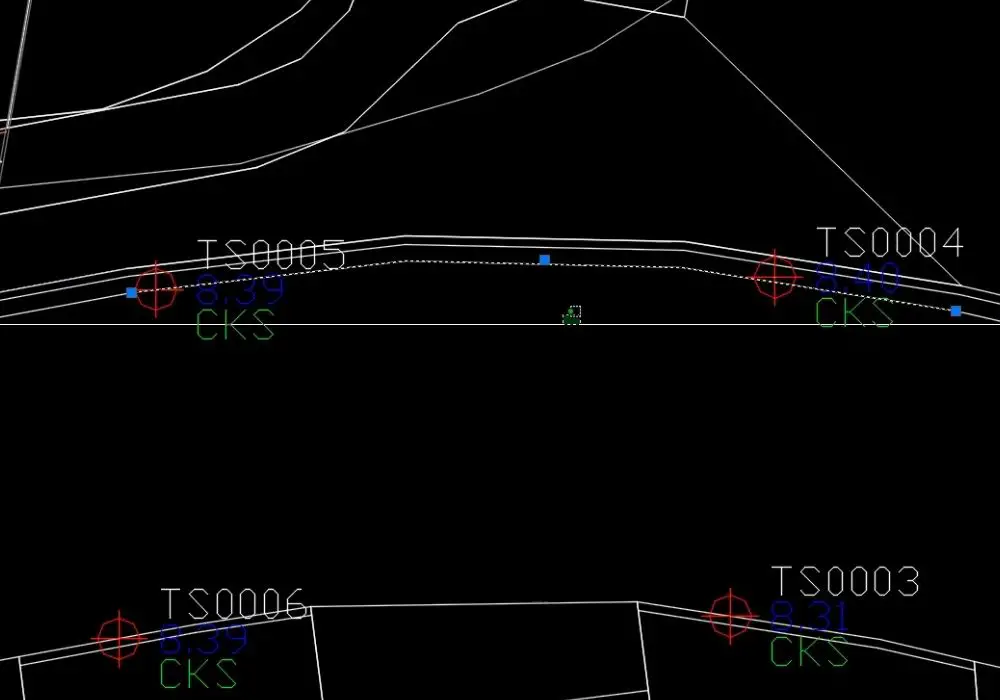
If the arc and circles in your drawing do not appear as smooth lines, do the following to fix up their appearance.
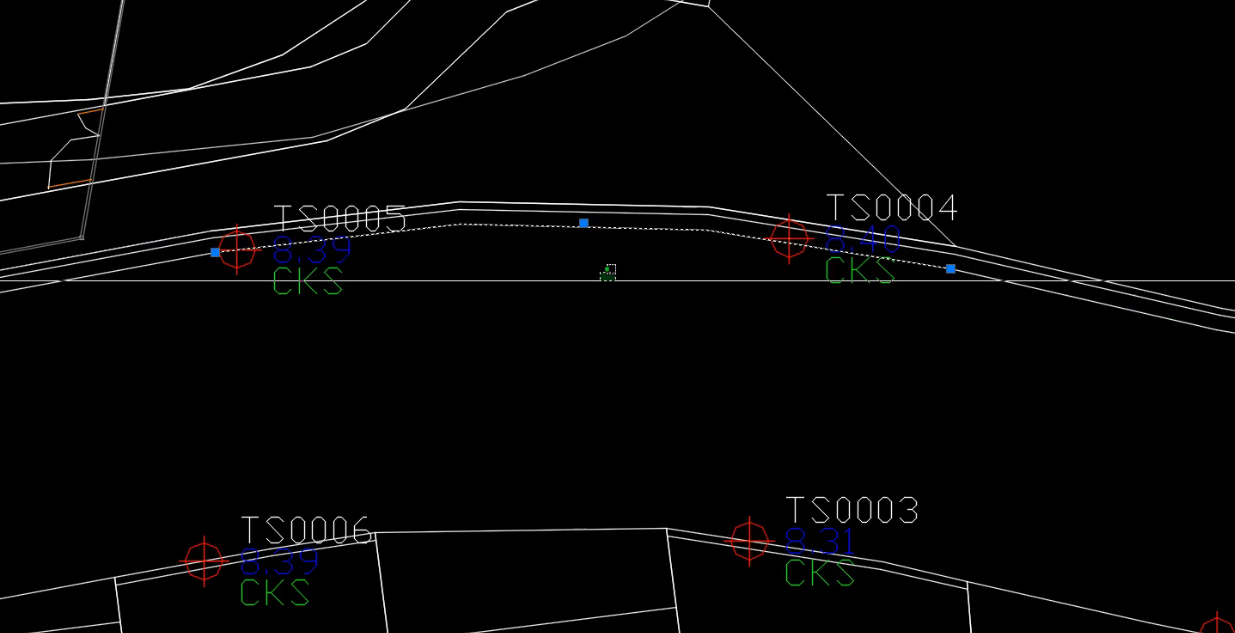
How To Smooth Arc And Circle Appearance In AutoCAD
Total Time: 1 minute
-
Right click in the model space and selection options
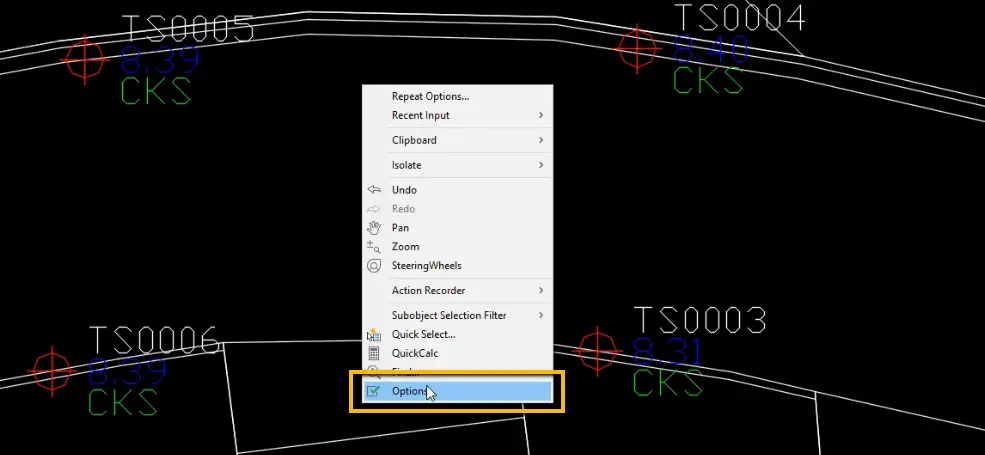
You could also type in the command “options” into the command line.
-
Set the arc and circle smoothness
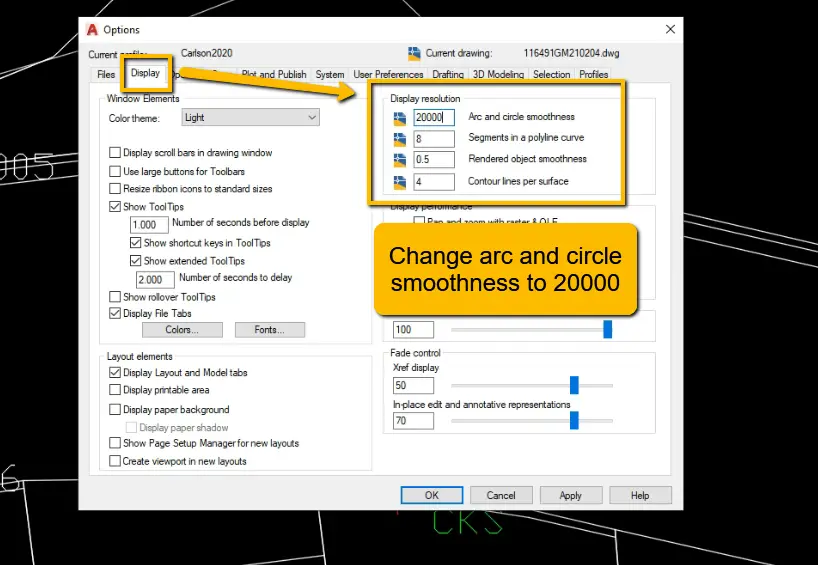
Change the arc and circle smoothness display resolution to 20000. This is the maximum number that AutoCAD will allow you to enter in.
-
Arcs and circles will now appear as smooth
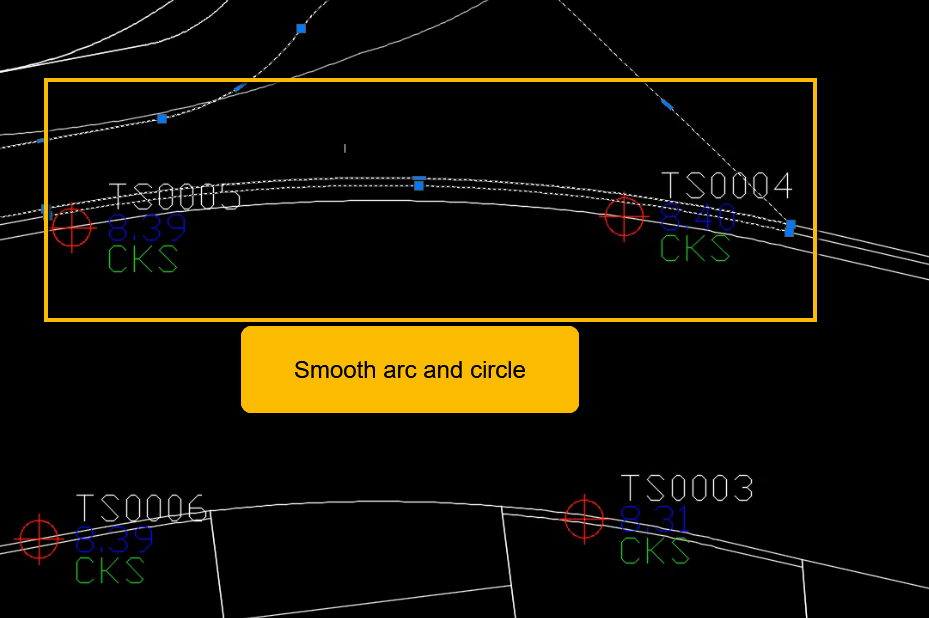
The arc and circles in your drawing will now appear smooth.